You are looking at a jacket in an online shop and trying to imagine it on you. Or you need a profile photo in a blazer and the only decent picture you have was taken in a hoodie. Or you just want to know whether the green dress or the red one works better before the wedding.
All three used to mean a fitting room, a photographer, or guessing. Now you can upload a photo, say what you want to wear, and get the same picture back with different clothes. This guide covers how to change clothes in a photo with AI, the prompts that give the cleanest results, and the things a virtual try-on cannot tell you.
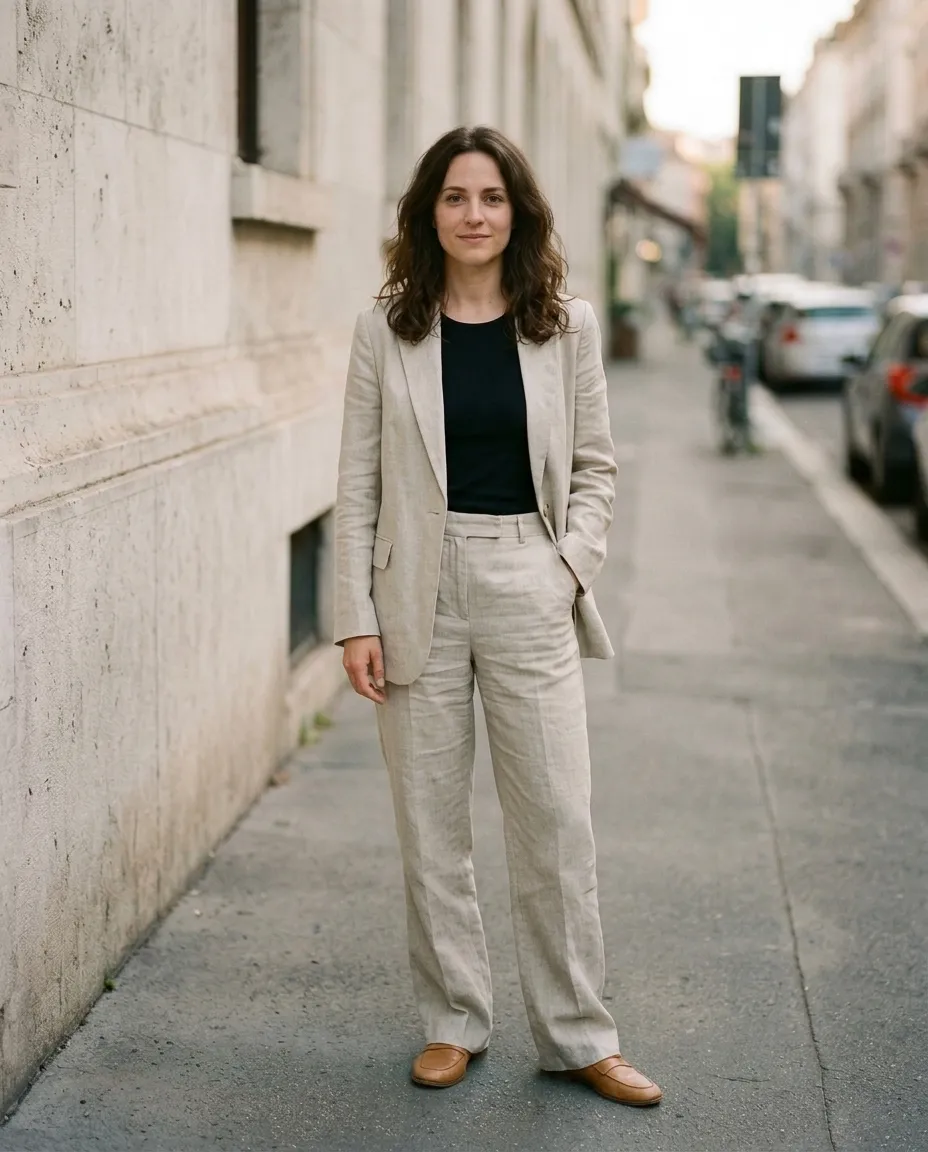
What an AI Clothes Changer Actually Does
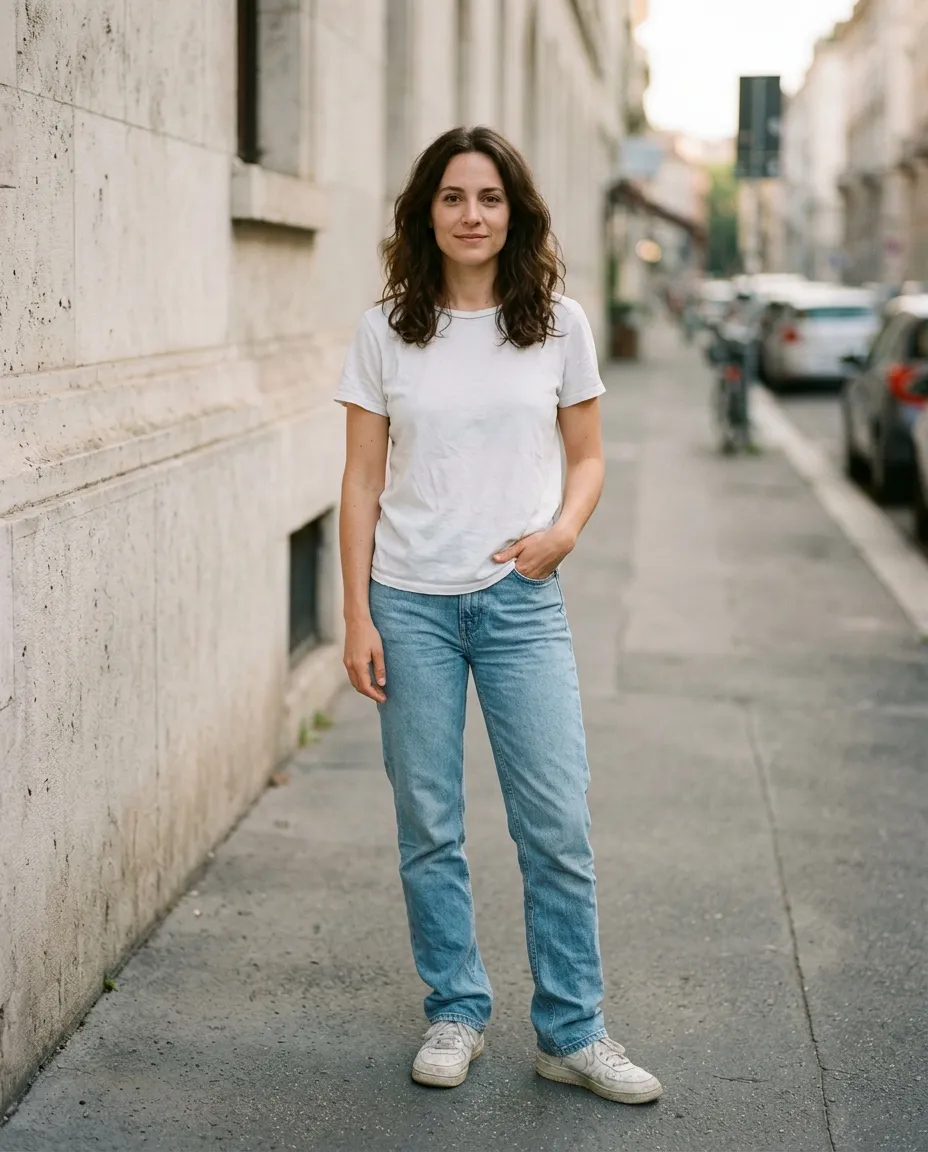
An AI clothes changer is a photo editor that redraws the clothing in a picture and leaves the rest alone. It reads the pose, the lighting and the body in your original, then paints the new outfit so the folds, shadows and proportions match. Your face, your hair and the background stay where they were.
There are two ways to tell it what you want:
- Describe the outfit in words. Fastest, and it works with a single photo.
- Show it the garment. Add a product photo or screenshot of the actual item and ask for it to be put on you. This is what most people mean by a virtual try-on.
Both run through the same editor in ZeroEdit. The difference is only whether the outfit comes from your sentence or from a second picture.
Method 1: Describe the Outfit
This is the quickest route, and it is the one to use when you care about the style more than one specific product.
- Upload a clear photo. Full-length, half-length and mirror selfies all work. The clothes you want replaced should be visible.
- Type the outfit. Name each garment, its color and its material.
- Compare with the original. If something is off, say so in a follow-up: a longer hem, a darker shade, different shoes.
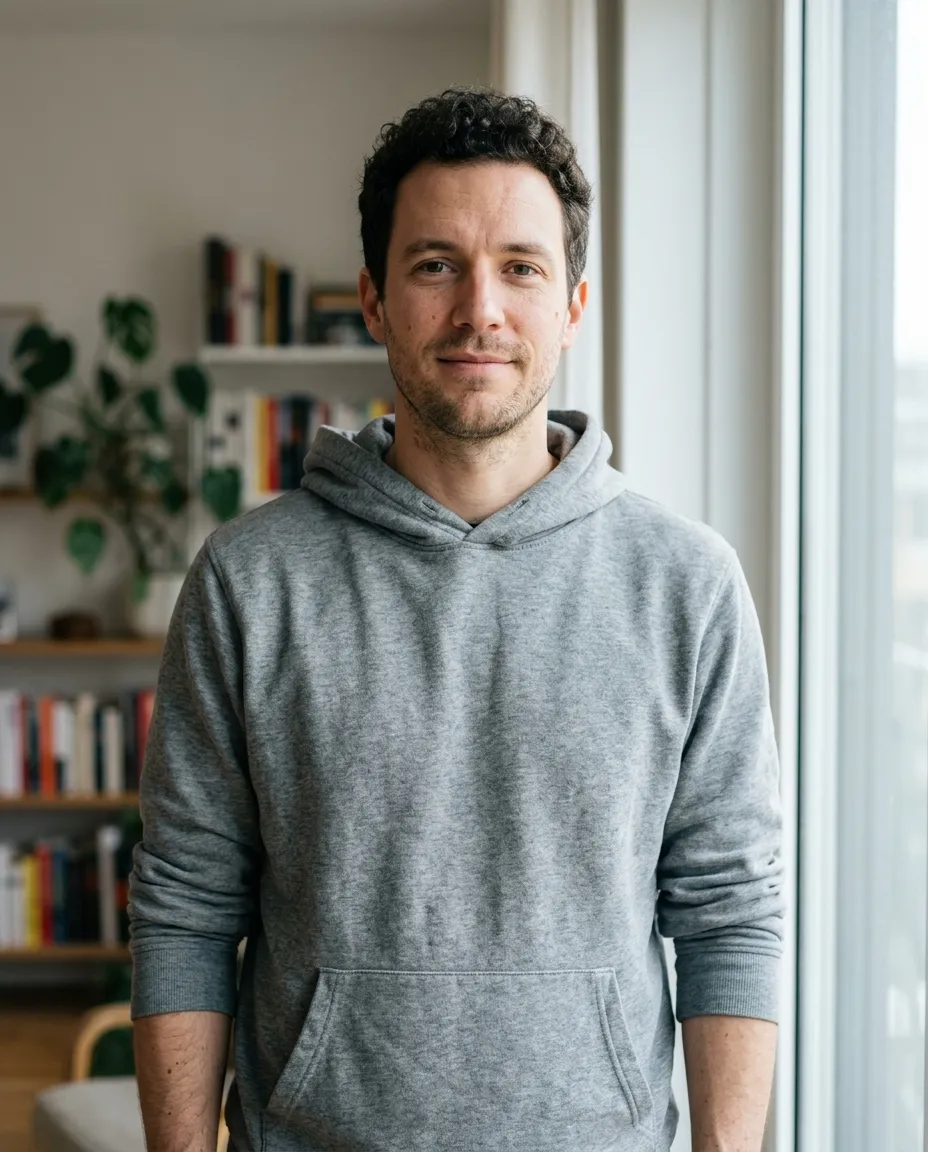

The Prompt Formula
Vague prompts get vague clothes. A prompt that names the pieces gets a result you can judge. The pattern that works:
Change [whose] outfit to [garment + color + material], [second garment], [shoes]. Keep everything else the same.
That last sentence matters more than it looks. It tells the AI the edit stops at the clothing, which is what keeps the face and background from drifting.
Method 2: Try On a Real Garment from a Product Photo
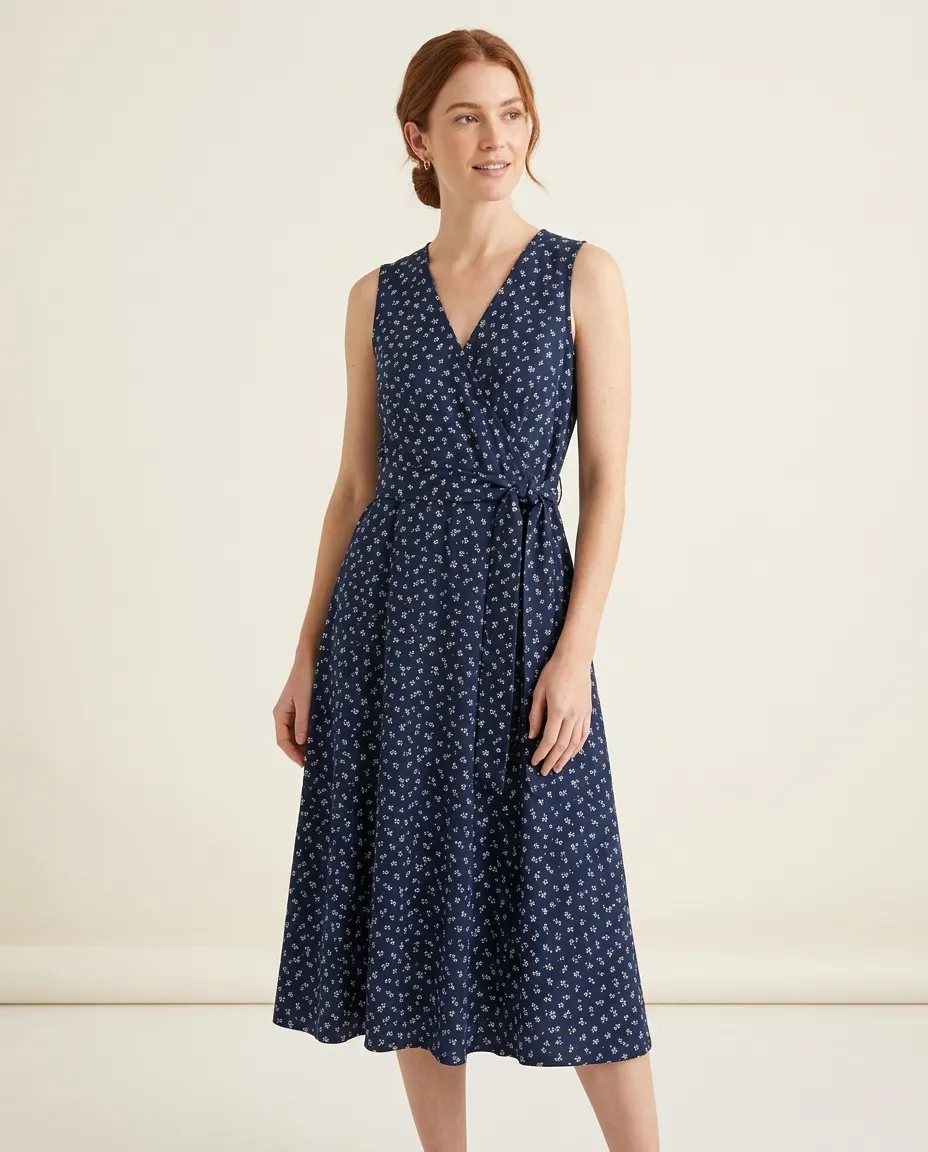
When you are deciding on one specific item, describing it is not enough. A "navy floral dress" could be a thousand dresses. Instead, give the AI the garment itself.
- Upload your photo.
- Add the product photo or a screenshot from the shop. A clean shot on a plain background works better than a busy lifestyle image.
- Ask for it: "Dress the person from the first image in the exact dress from the second image. Keep the print, color and cut."
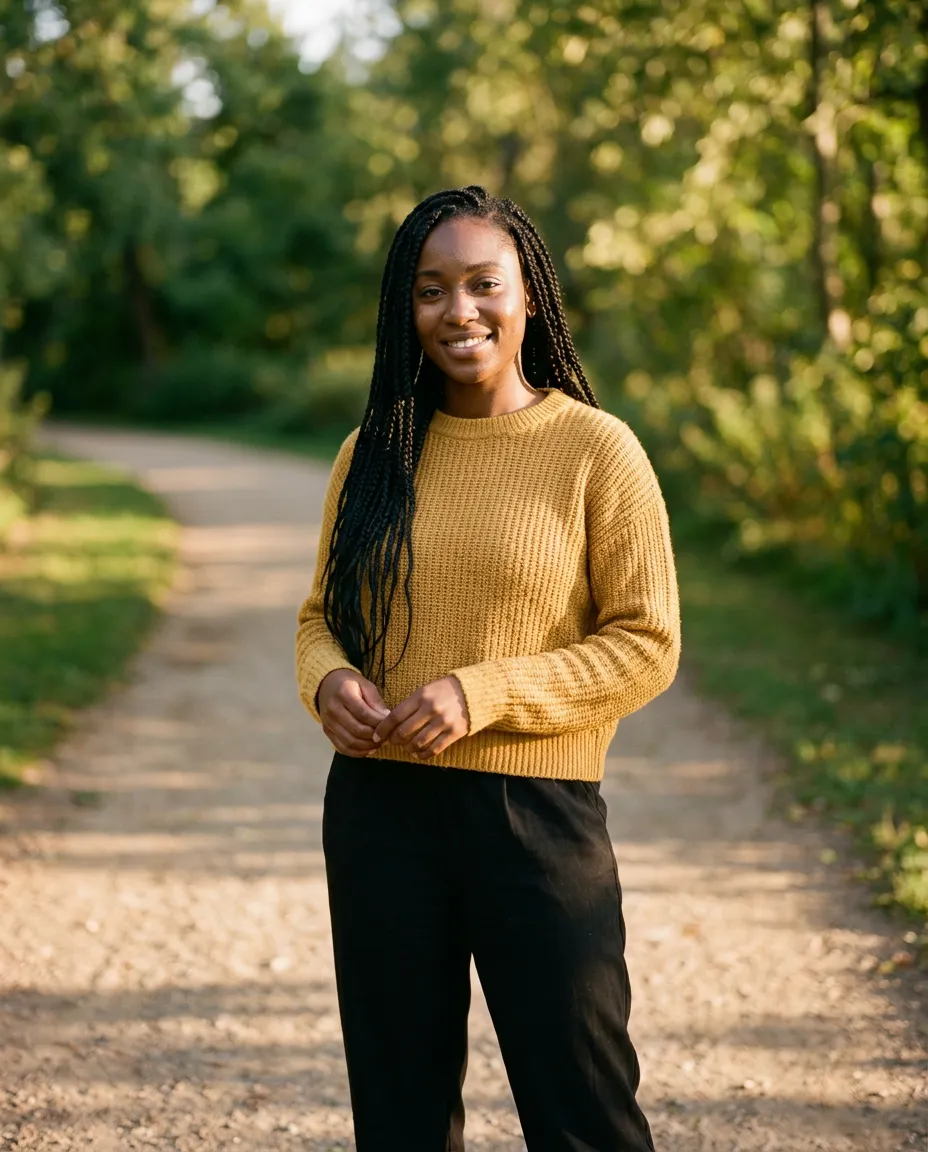
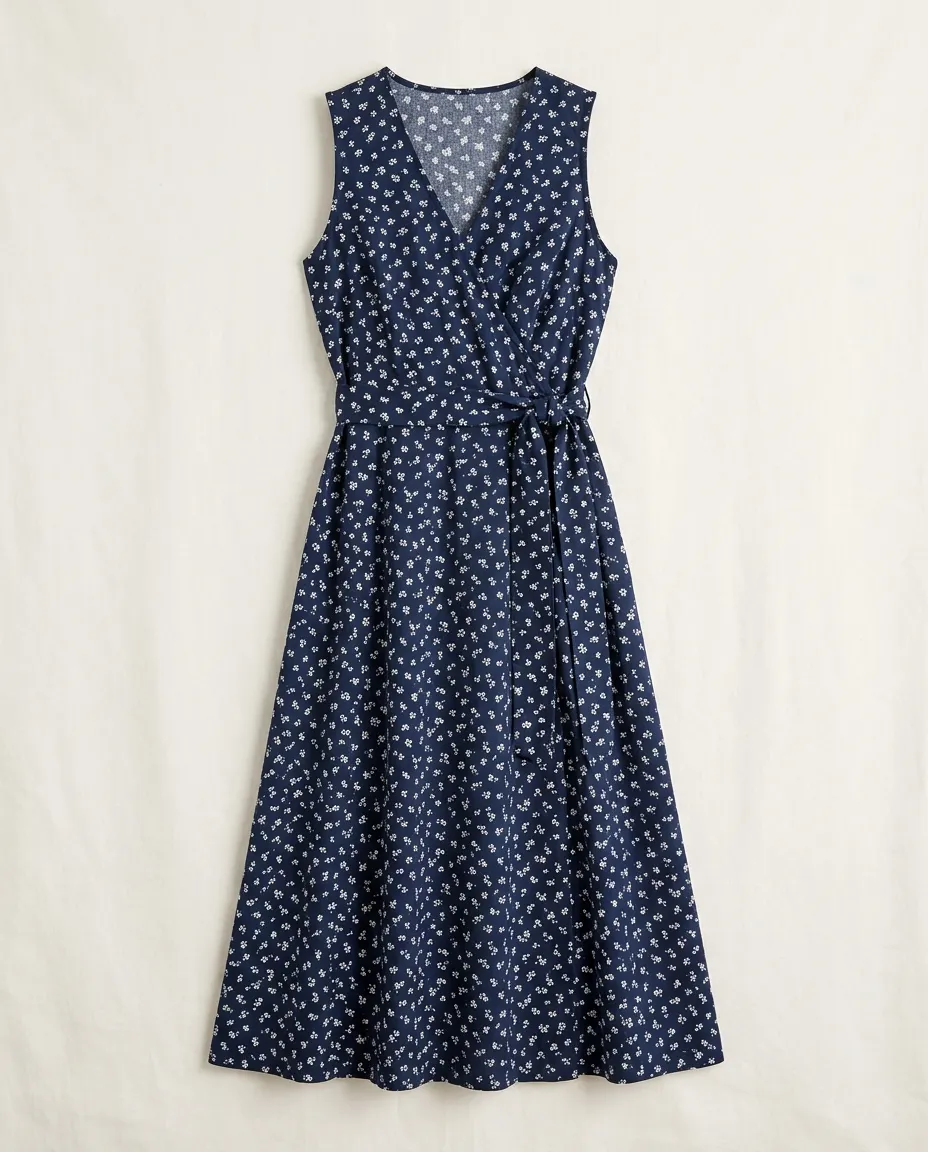
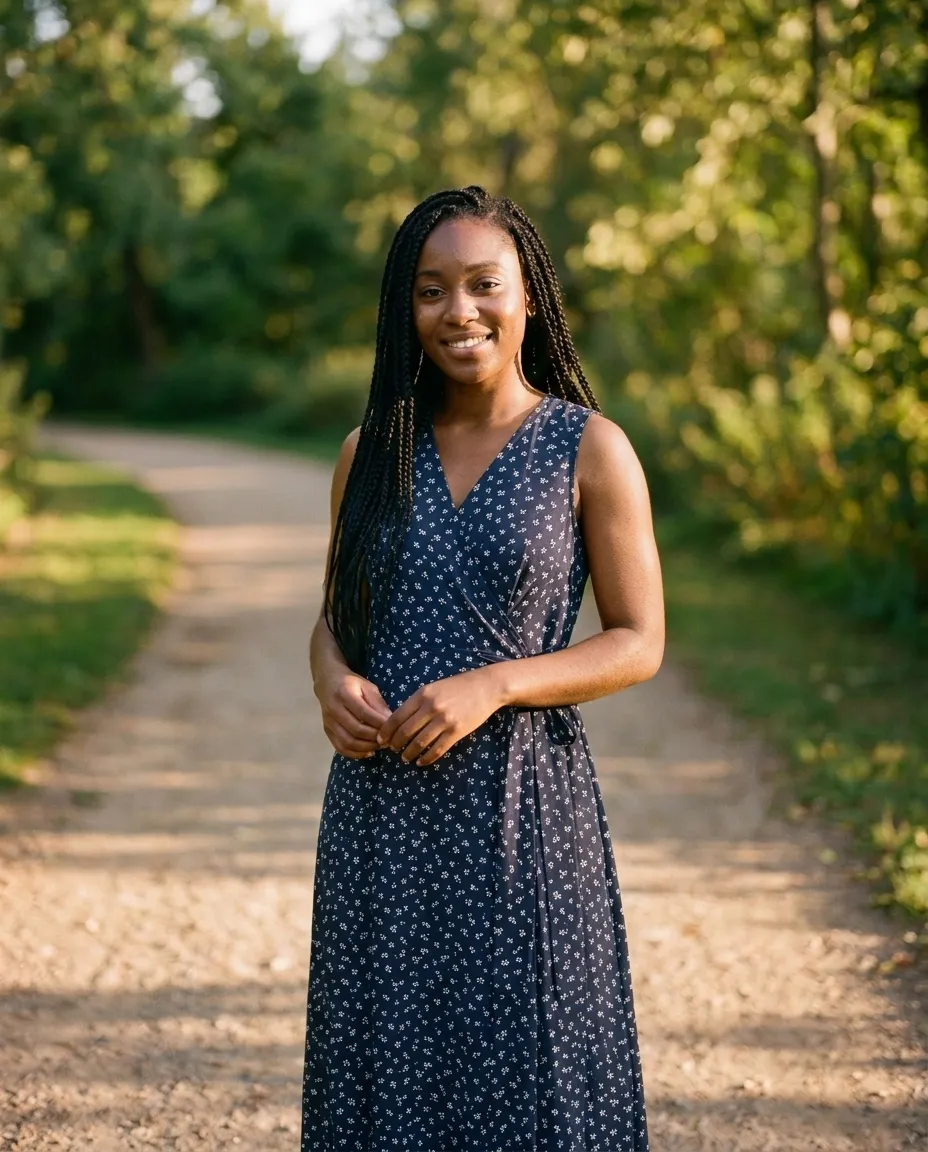
Two honest notes. First, using a second image as a reference is multi-image editing, which is part of ZeroEdit's paid plans; the free edit works from a description. Second, check small details. On our first attempt at the dress above, the print came out denser than the real fabric. Adding "do not enlarge or densify the print" to the prompt fixed it. Fine patterns, logos and text are the things to look at twice.
Prompts You Can Copy
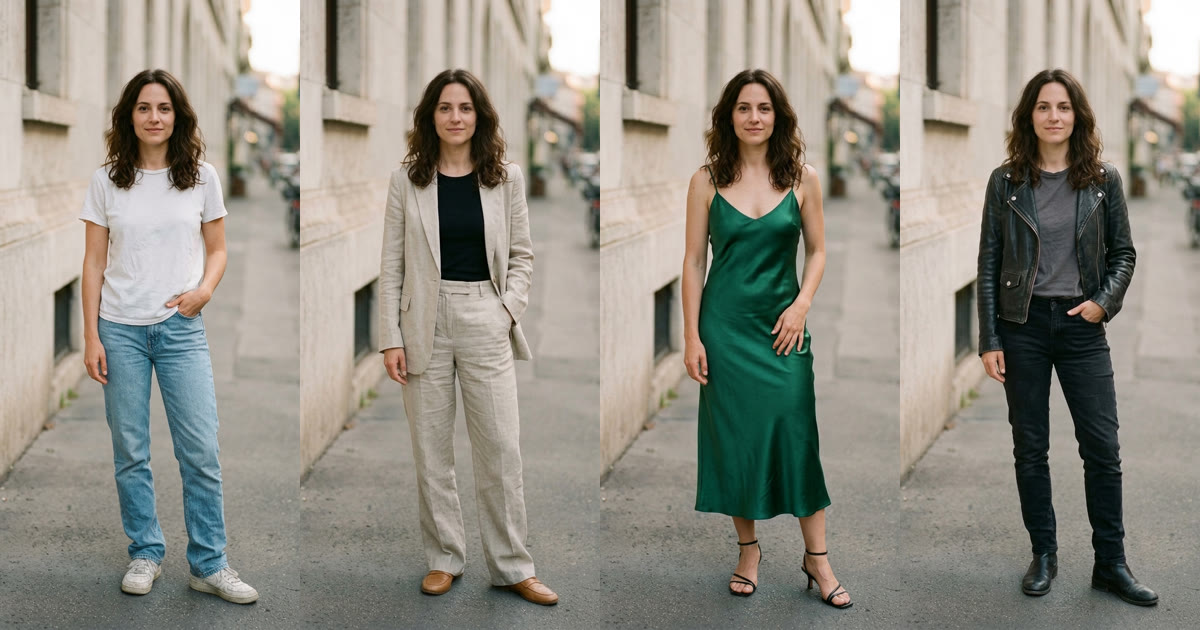
- Work: "Change my outfit to a charcoal blazer, white shirt and dark trousers."
- Casual: "Swap the hoodie for a denim jacket over a white tee."
- Evening: "Put me in an emerald satin slip dress and black heels."
- Cold weather: "Change my outfit to a long camel wool coat over a cream turtleneck."
- Color only: "Change the dress from blue to emerald green. Keep the cut and fabric the same."
- Fabric only: "Make the jacket leather instead of denim."
One Photo, Many Outfits
The useful part is not a single swap. It is running several on the same picture and comparing them side by side, which is something a fitting room cannot do. Same light, same pose, same you; only the clothes differ.
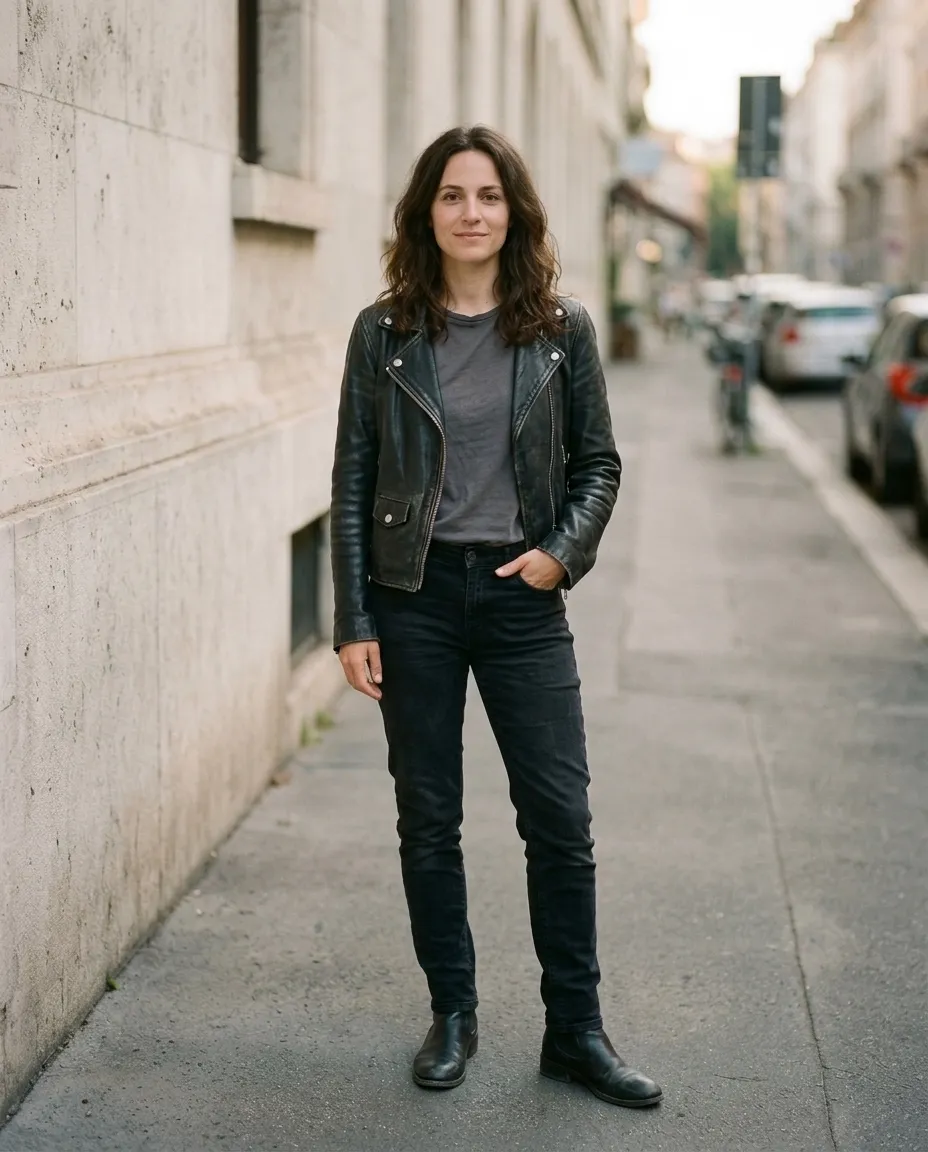
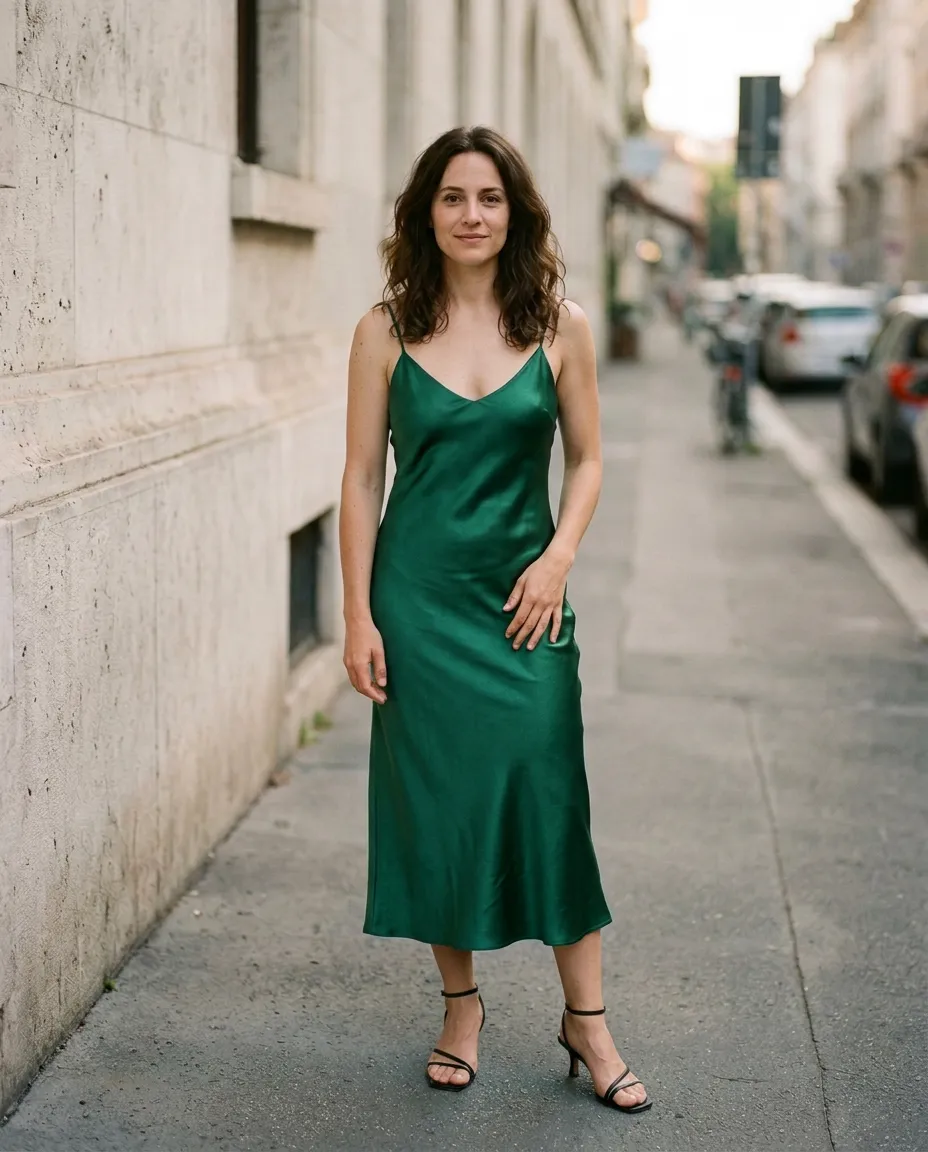
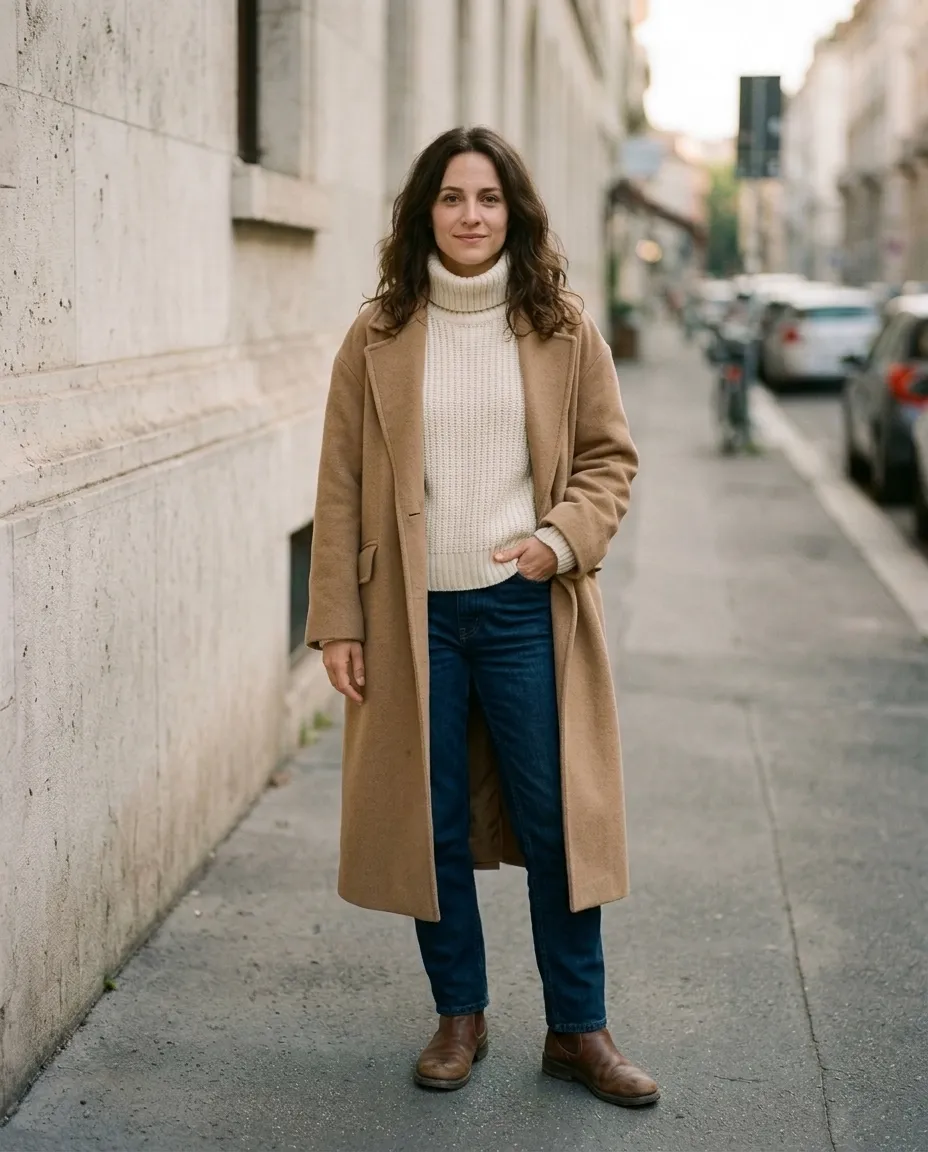
This is how to plan what to wear for a trip, an interview or a wedding: one photo, a handful of instructions, and a decision made by looking instead of imagining.
Beyond the Outfit: Color, Accessories and Hair
Styling is more than clothes, and the same editor handles the rest. Ask for one change at a time and the result stays predictable.
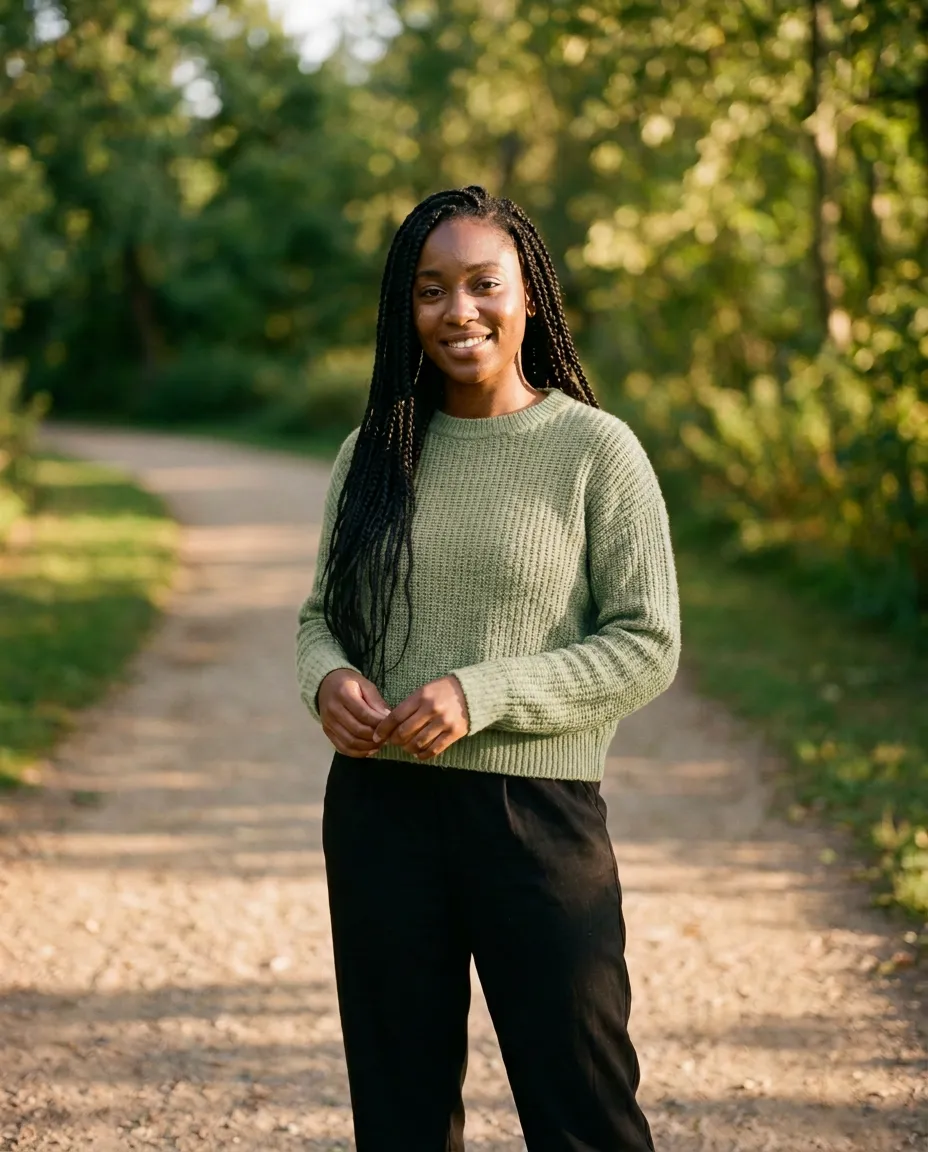
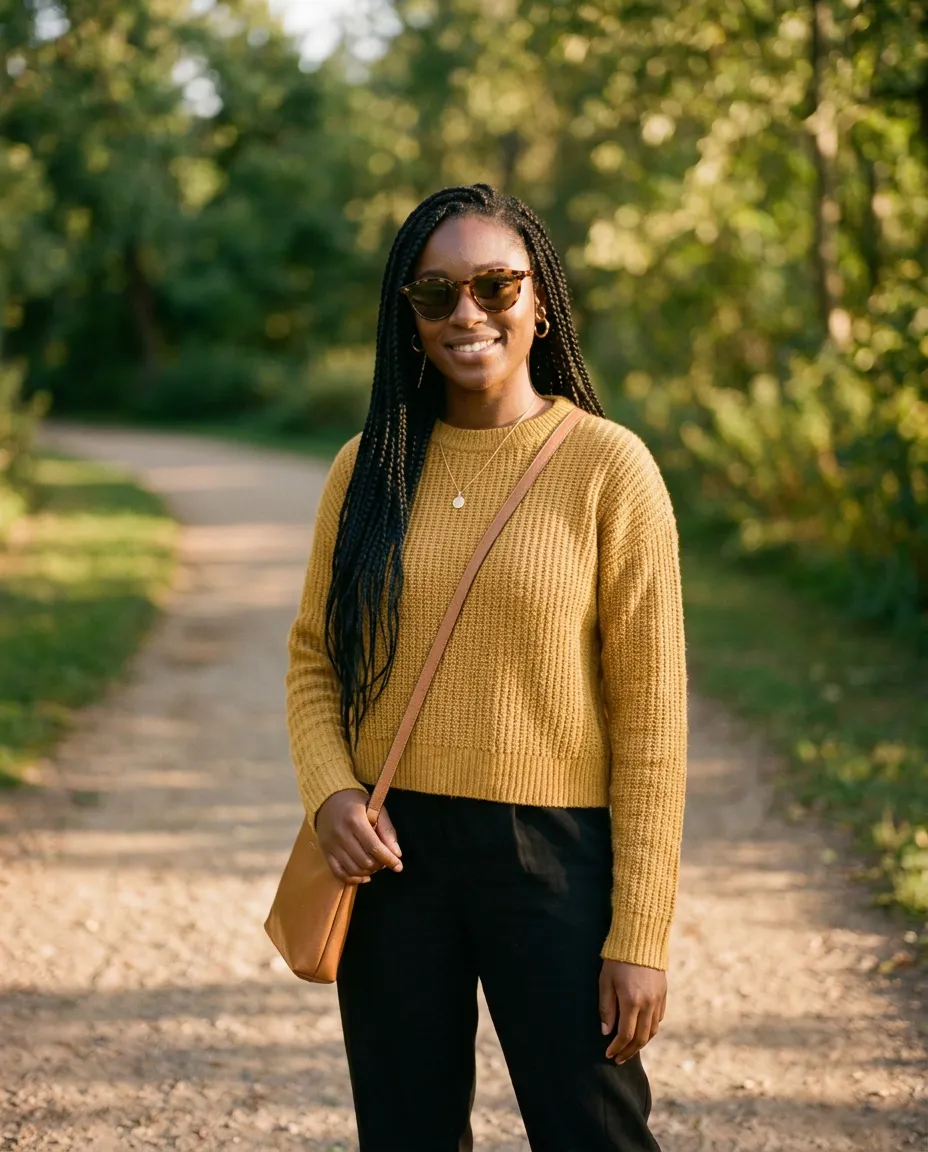
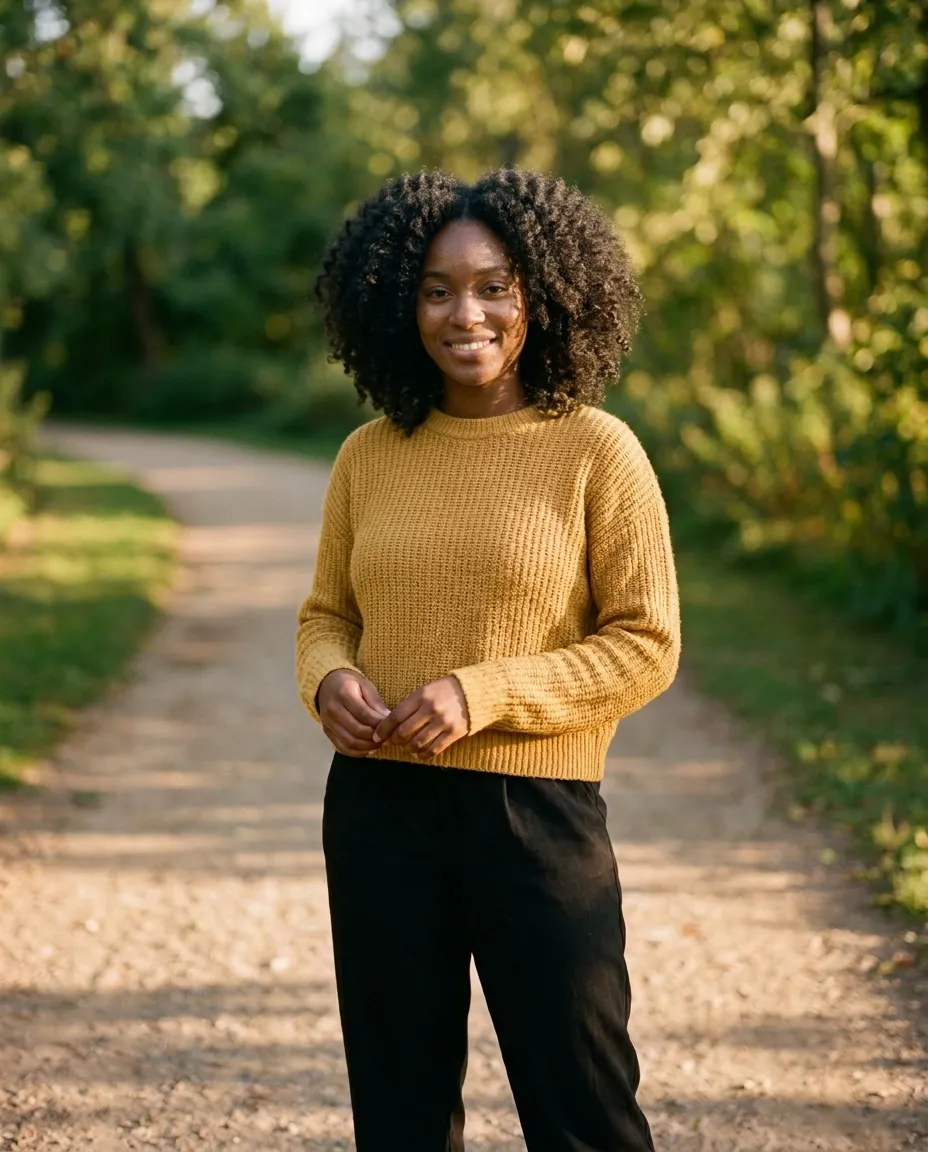
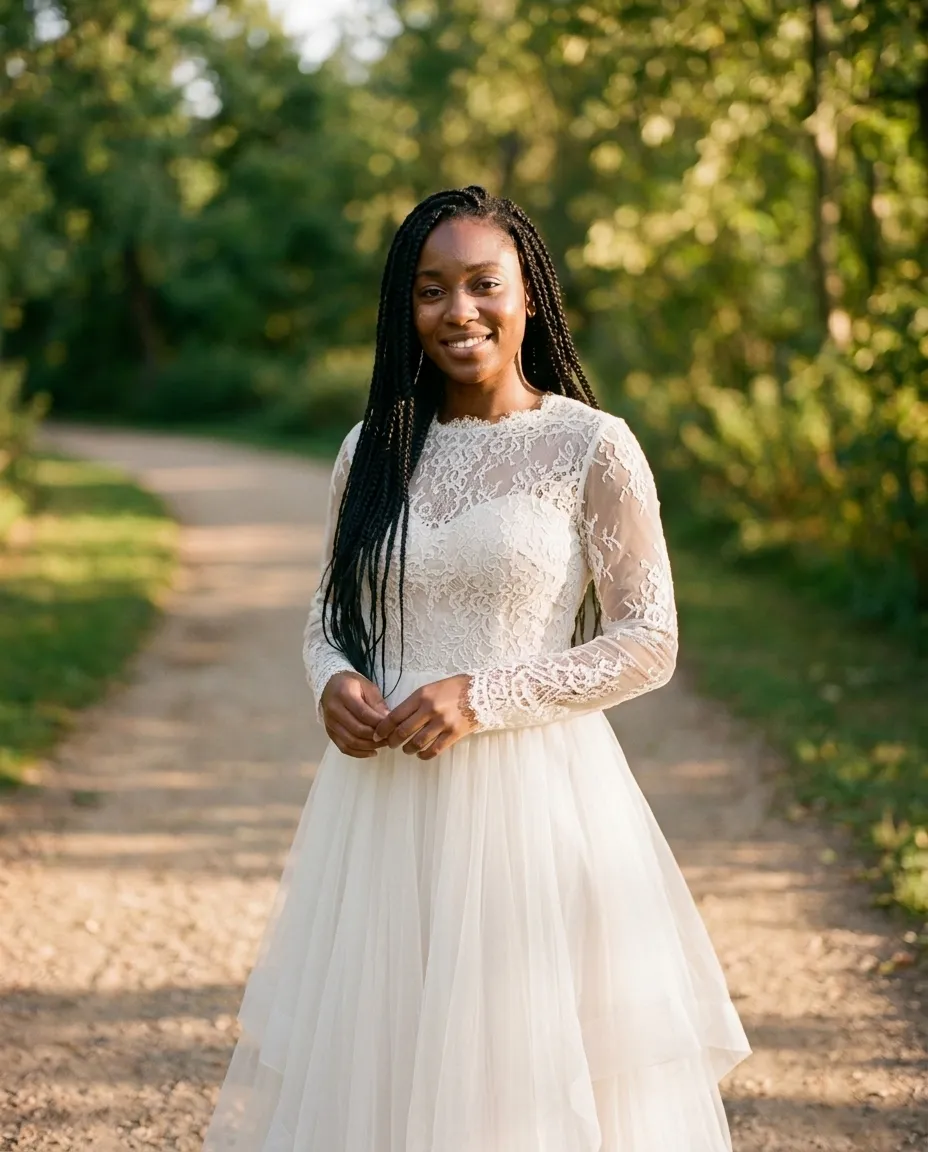
- Recolor a garment: "Change her sweater from mustard yellow to sage green."
- Add accessories: "Add tortoiseshell sunglasses, gold hoops and a tan crossbody bag."
- Try a haircut: "Replace the long braids with a shoulder-length natural afro."
- Preview an occasion: "Change her outfit to an ivory wedding dress with long lace sleeves."
Which Photos Work Best
- Good, even light. The AI matches the new fabric to the light it sees. Harsh shadows make that harder.
- One person. In a group shot, say exactly who you mean: "the man on the left".
- Visible clothing. Arms, bags or furniture in front of the outfit leave the AI guessing what is behind them.
- A straight-on pose. Unusual angles work, but less reliably.
- The framing you want to keep. If you want to see shoes, use a photo that shows your feet.
What a Virtual Try-On Cannot Tell You
It is worth being clear about the limits, because they decide how much to trust what you see.
- It does not know your size. The AI has no measurements and no size chart. It shows how a style looks on you, not whether the medium will fit.
- It does not know the fabric. How a material drapes, stretches or feels is an educated guess from a picture.
- Small details can drift. Logos, tiny prints and stitching are the first things to go slightly wrong.
Treat the result as an answer to "do I like how this looks on me?" and it is very useful. Treat it as a fitting and it will let you down.
For Sellers: From a Flat Lay to an On-Model Photo
The same technique runs in the other direction. If you sell clothing and only have flat-lay or hanger photos, you can ask for the garment to be shown on a model, then export the result at the exact size your marketplace requires.
More on that workflow, including editing up to fifty product photos with one instruction, is on the e-commerce page and in batch editing.
Common Mistakes
- Asking for everything at once. "New outfit, new hair, new background, make me smile" gives the AI permission to change the whole picture. Do one thing, then the next.
- Leaving out the anchor. Without "keep everything else the same", small unrequested changes creep in.
- Describing a mood instead of clothes. "Make me look professional" is a guess. "Navy blazer, white shirt" is an instruction.
- Not checking the face. If it changed, say so: "keep my face exactly as in the original".
A Note on Whose Photos You Edit
Use this on photos of yourself, or of people who have agreed to it. Putting real people into clothes or situations they did not consent to is not what the tool is for.
Try It on Your Own Photo
The AI clothes changer has interactive before-and-after examples and more prompts to copy. Your first edit on ZeroEdit is free and needs no credit card: upload a photo, describe the outfit, and compare.
The people in these examples are AI-generated. Every edited picture is the unretouched result of one instruction applied to the photo shown beside it.